How to Use a Sound Desk (Mixing Console) for Podcasting
Published How we research
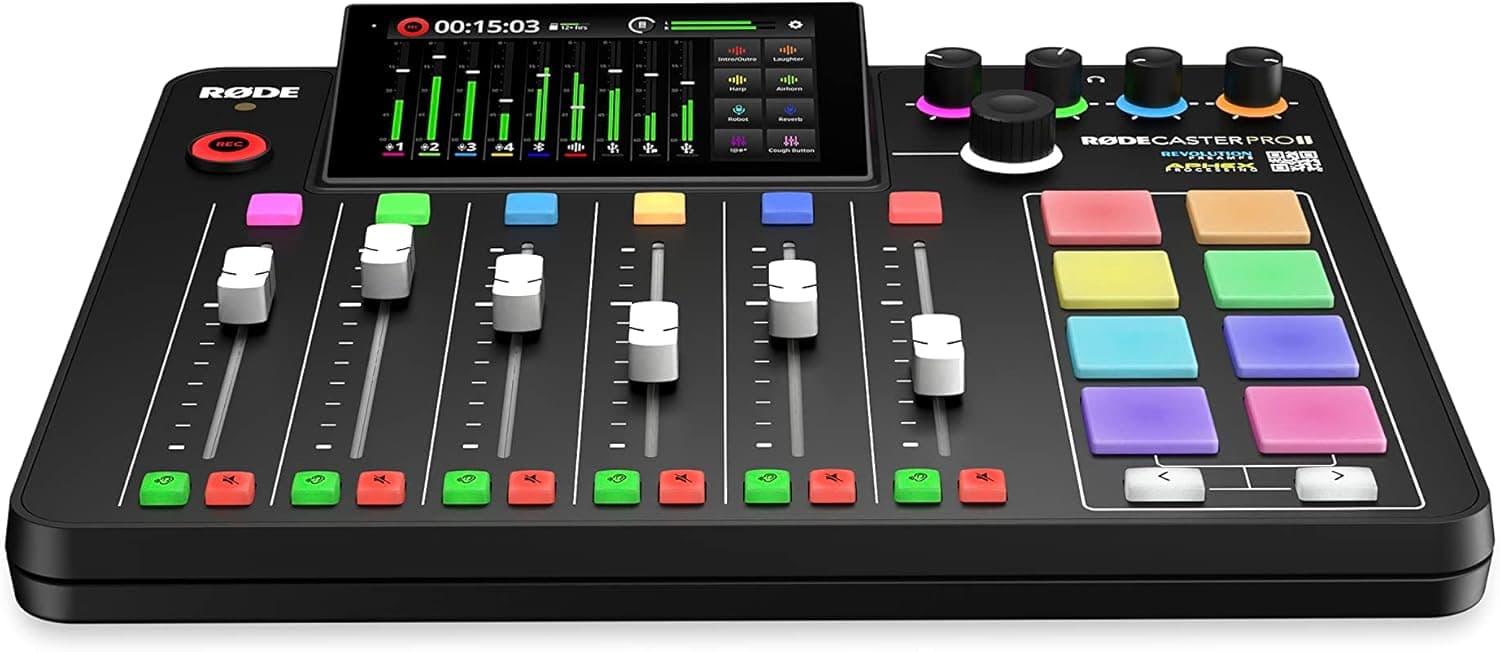
To use a sound desk, work one channel at a time from top to bottom: set the input gain first, switch on phantom power only if the mic needs it, shape the tone with the high-pass filter and EQ, and only then raise the fader to blend voices. A sound desk is the same as a mixing console or mixer; the buttons look intimidating, but every channel strip repeats the same few controls in the same order.
Products from this article
The highest-scoring picks from the buying guides this article links to. Scores are our editorial assessment, not customer ratings.
+ Mixes mics, phone guests, music and sound pads without needing a computer
From our guide: Best Podcast Mixers
+ 8-channel design handles mics, instruments and computer audio together
From our guide: Best USB Mixers
+ Bright level meters show exactly when your voice is getting too loud
From our guide: Best Audio Interfaces
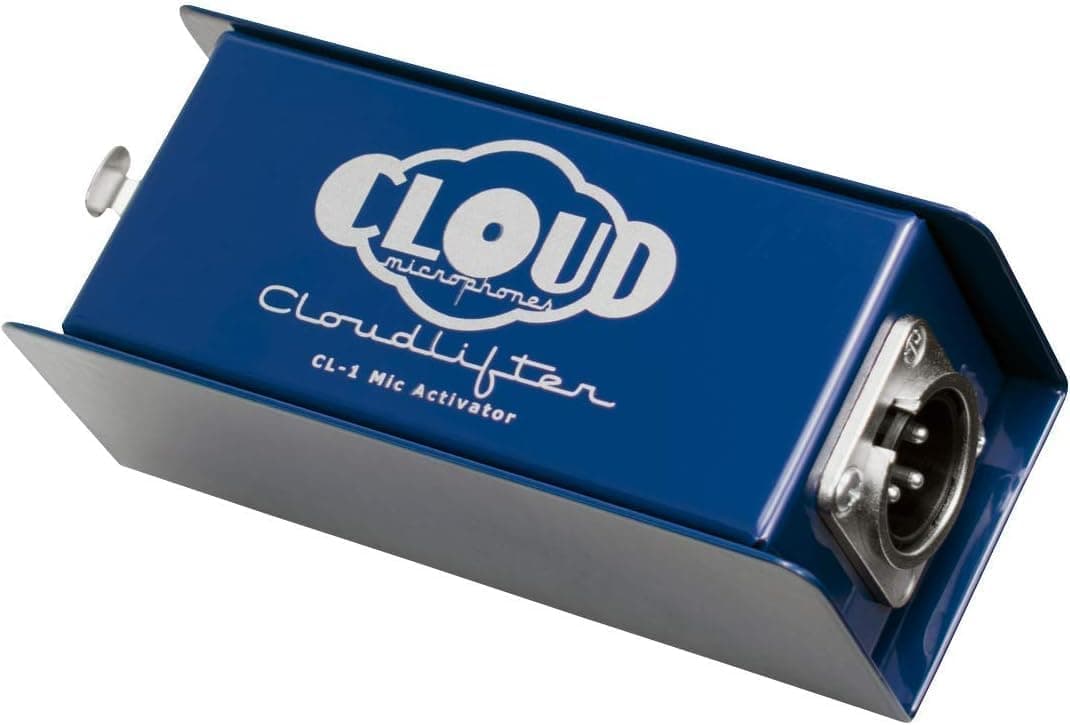
+ Adds clean gain so quiet dynamic mics reach good levels without hiss
From our guide: Best Microphone Preamps
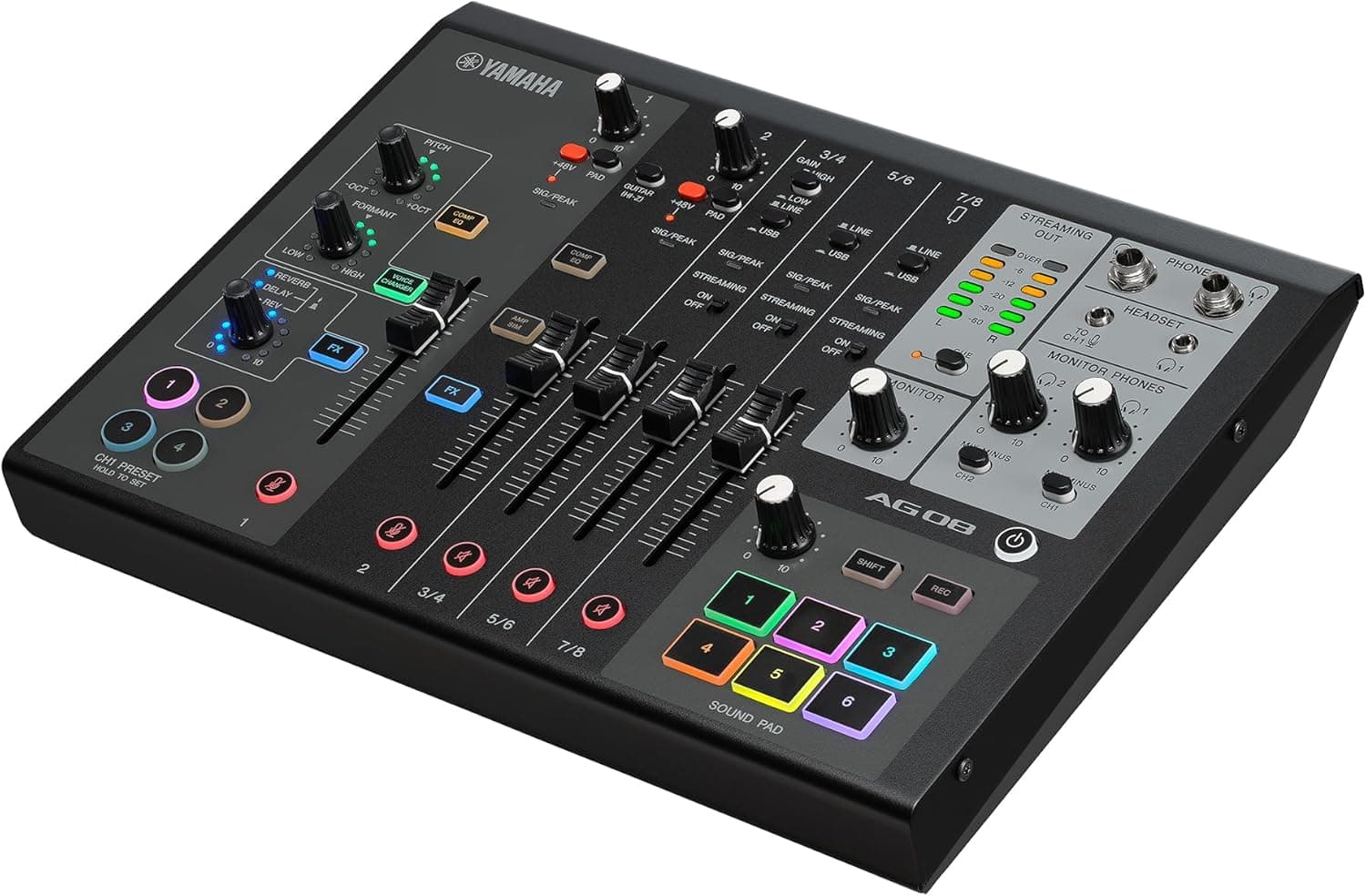
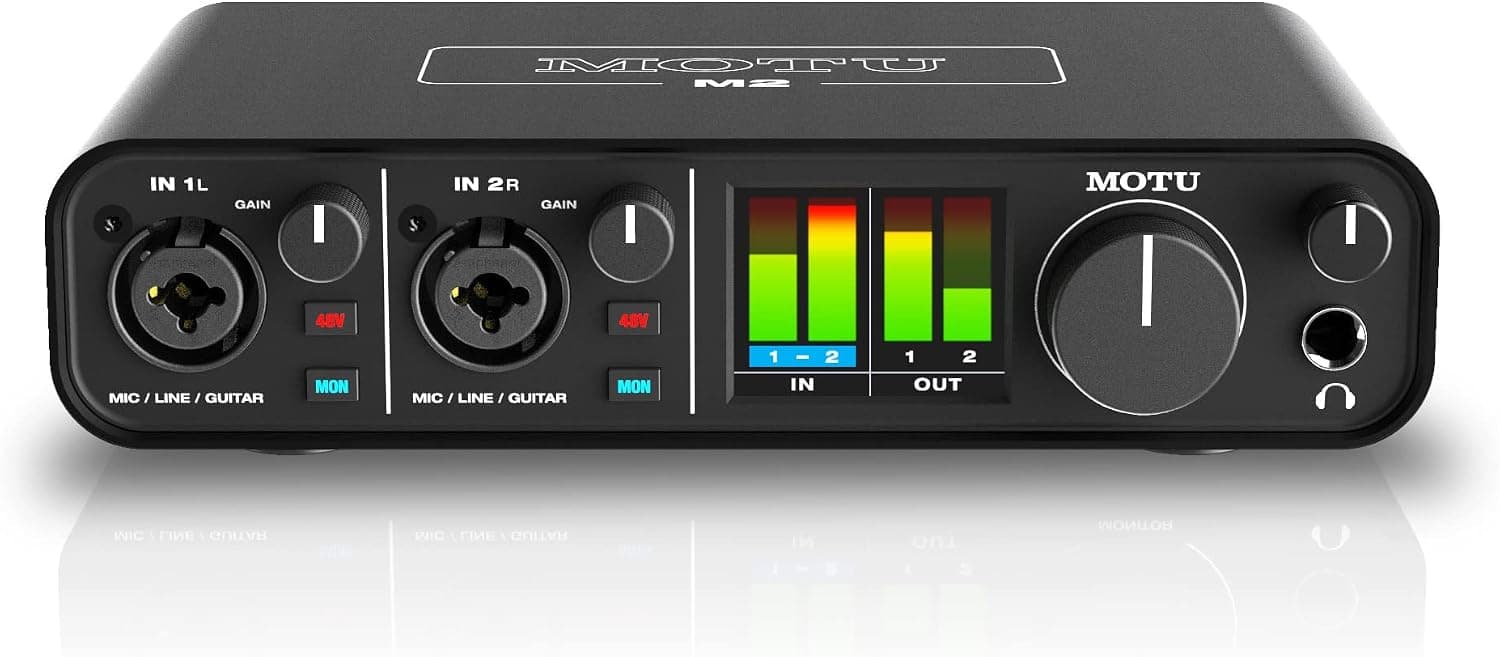
Read the channel strip from top to bottom
Almost every mixer lays out one vertical strip per input, and the signal flows roughly from the top of the strip to the bottom. At the top you find the input jacks and the gain knob, below that the filter and equalizer, then the auxiliary sends and pan control, and at the bottom the mute button and the fader. Learning to read that top-to-bottom path tells you where to look when something sounds wrong.
The right-hand side of the desk holds the master section: the main output fader, the headphone level knob, and often meters that show what is leaving the desk. Smaller desks for podcasters may have only four to eight channels, and the strips are identical, so once you understand one you understand them all.
Step 1: Set the gain before touching the fader
The gain (sometimes labeled trim) knob controls how loud the microphone is when it enters the desk. Set the channel fader to its marked unity position, often shown as 0 or a U, then have the person speak at their normal podcasting volume and turn the gain up until the channel meter peaks around the yellow zone without lighting the red clip LED. Laugh or raise your voice once to check there is headroom.
Gain is for matching the mic to the desk, and the fader is for balancing voices against each other. If you leave gain low and push the fader high, you amplify noise along with the voice. Low-output dynamic microphones often need a lot of gain, and if the knob is nearly maxed out and the voice is still quiet, an inline booster can help; see our guide to microphone preamps for options. The same idea, explained for any signal chain, is in our article on gain staging basics.
Many desks also have a pad switch. Use it only when a very loud source clips even with gain turned all the way down. Engage it for loud sources such as a shouted ad read or a hot condenser, then switch it off again when levels are normal.
Step 2: Phantom power, filter and EQ
Condenser microphones need 48V phantom power, which is usually a switch per channel or one switch for a block of channels. Turn the channel down (or mute it) before switching phantom power on or off to avoid a loud thump, and leave it off for dynamic microphones unless the mic manual says it is safe. Ribbon microphones in particular can be damaged by phantom power with faulty cabling, so check before enabling it.
Next, engage the high-pass or low-cut filter. Voices carry little useful energy below roughly 80 Hz, so a filter at 75 to 100 Hz removes desk rumble, breath thumps and air-conditioning hum without thinning the voice. Then use the EQ lightly. A small cut in the low mids around 200 to 400 Hz can clear a boxy sound, and a gentle lift of a few dB in the presence range around 3 to 5 kHz helps speech cut through. If you find yourself boosting more than a few dB, the real fix is usually microphone placement or room treatment rather than EQ.
If you are still choosing a mic that suits your voice and your desk, our guides to XLR microphones and dynamic microphones compare current options.
Step 3: Balance voices with faders and pan
With each channel's gain set, bring up the faders until the main output meter averages in the green with occasional peaks into yellow. Voices of different loudness are balanced here: if one guest is naturally quieter, raise that fader a little rather than increasing their gain into noise. Keep the faders in a similar range, because a fader pushed to the top has no room left to move.
The pan knob places a channel left or right in the stereo field. Most spoken podcasts are published in mono or with voices near the center, so leave pan centered unless you are building a deliberate two-person stereo image. Use the mute button for anyone who is not speaking, which cuts background noise and keystrokes. For live shows with intros, stingers and sound effects, a dedicated board such as those in our podcast soundboards guide can be plugged into a spare channel.
Step 4: Monitor with headphones and send audio to the computer
The headphone output lets you hear the mix without feeding it back into open microphones. Set the headphone level knob low before plugging in, then raise it. Many desks offer a solo or PFL (pre-fader listen) button that sends one channel to your headphones so you can check a single mic without changing the main mix, which is handy for hunting a hum or buzz.
To record, connect the desk to a computer. A USB mixer shows up as an audio device with the main mix, and some send individual channels as separate tracks; check the specifications before you buy if you want separate tracks for editing. An analog desk without USB needs an audio interface or a recorder connected to its main or record outputs. Our guide to USB mixers lists compact options that record over one cable.
For remote guests, use the aux or bus send instead of the main mix. Sending everything except the guest's own voice back to them is called a mix-minus, and it prevents the guest from hearing an echo of themselves. Not every small desk has the aux send needed for this, so check the routing before you plan a remote show.
Common problems and quick fixes
Hiss usually means too much gain on a quiet source with the fader pulled down, so lower the gain only if the meter still has headroom, and move the microphone closer instead. A hum that appears when you plug in a cable often comes from a poor ground or a power adapter placed near unshielded cables; try rerouting cables and using balanced XLR leads of good quality.
Distorted audio that does not match the meters can come from clipping at a later stage, such as the computer's input level, so check the level on the recording software too. If a voice sounds thin, check that the high-pass filter is not set too high. If the sound is boomy, move the mic closer and reduce proximity effect before reaching for EQ.
Finally, label the desk with tape or a marker. Writing the host's and guest's names under each fader saves mistakes during a live recording and makes it easy to return to a known setup.
Frequently asked questions
Is a sound desk the same as a mixer? Yes. Sound desk, mixing desk, mixing console and mixer all describe the same device. In the UK the term sound desk is more common, while US podcasters usually say mixer or board.
Do I need a sound desk to podcast? No. A single USB microphone plugged into a computer works for a solo show. A desk becomes useful when you have several microphones, want physical faders, or want headphone monitoring and a clean record feed in one place.
How many channels do I need? Count the microphones you will use at once, add one for a computer or phone input if you take remote calls, and leave one or two spare for music or a soundboard. A four-channel desk fits a two-person show with a remote guest; six to eight gives room to grow.
Should I turn the EQ up on the desk or fix it in editing? Keep desk EQ light and prefer fixes at the source. Cuts are generally safer than boosts, and you can still refine the sound in your editor afterward.
Popular right now
- Best Microphone Isolation ShieldsBuying guide
- Best Acoustic DiffusersBuying guide
- Best XLR MicrophonesBuying guide
- Gain Staging BasicsArticle
- Best LED Video LightsBuying guide
- Best Digital RecordersBuying guide
Based on the last 28 days of search and visitor data.