How to Fix a USB Microphone Your Computer Will Not Detect
Published How we research
USB microphones are supposed to be plug and play, so it is frustrating when a new mic does not show up in your recording software or records nothing at all. Most detection problems come from cables and ports, operating system privacy permissions or the wrong input selected in an app. Working through these checks in order solves the vast majority of cases.
Products from this article
The highest-scoring picks from the buying guides this article links to. Scores are our editorial assessment, not customer ratings.
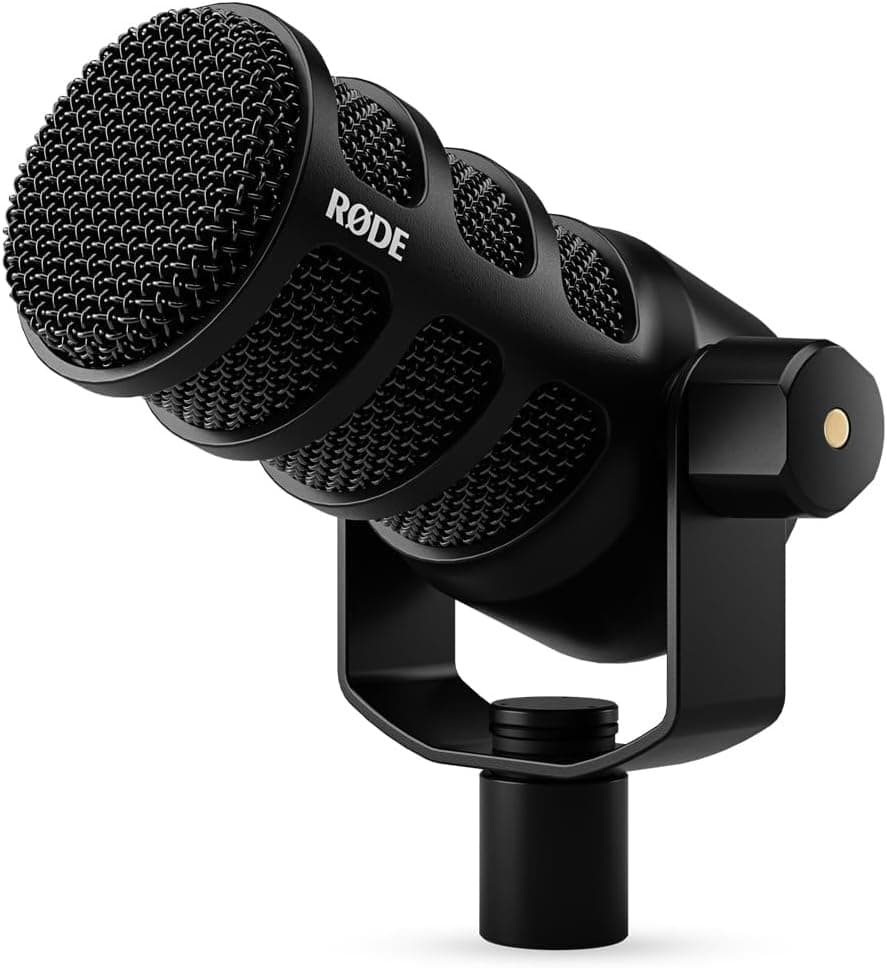
+ USB and XLR outputs cover solo laptop recording and multi-mic interface setups
From our guide: Best USB Microphones
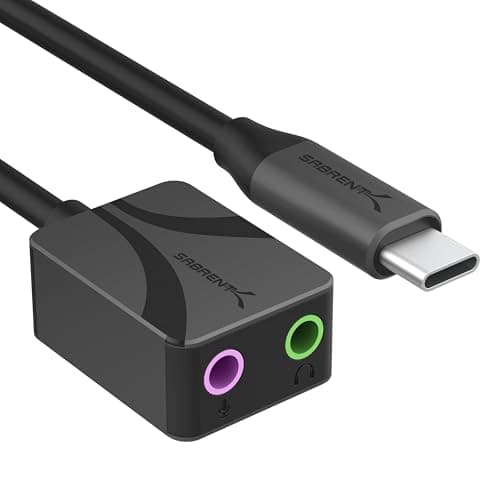
+ Separate 3.5mm jacks for stereo headphone output and mono microphone input
From our guide: Best USB Audio Adapters
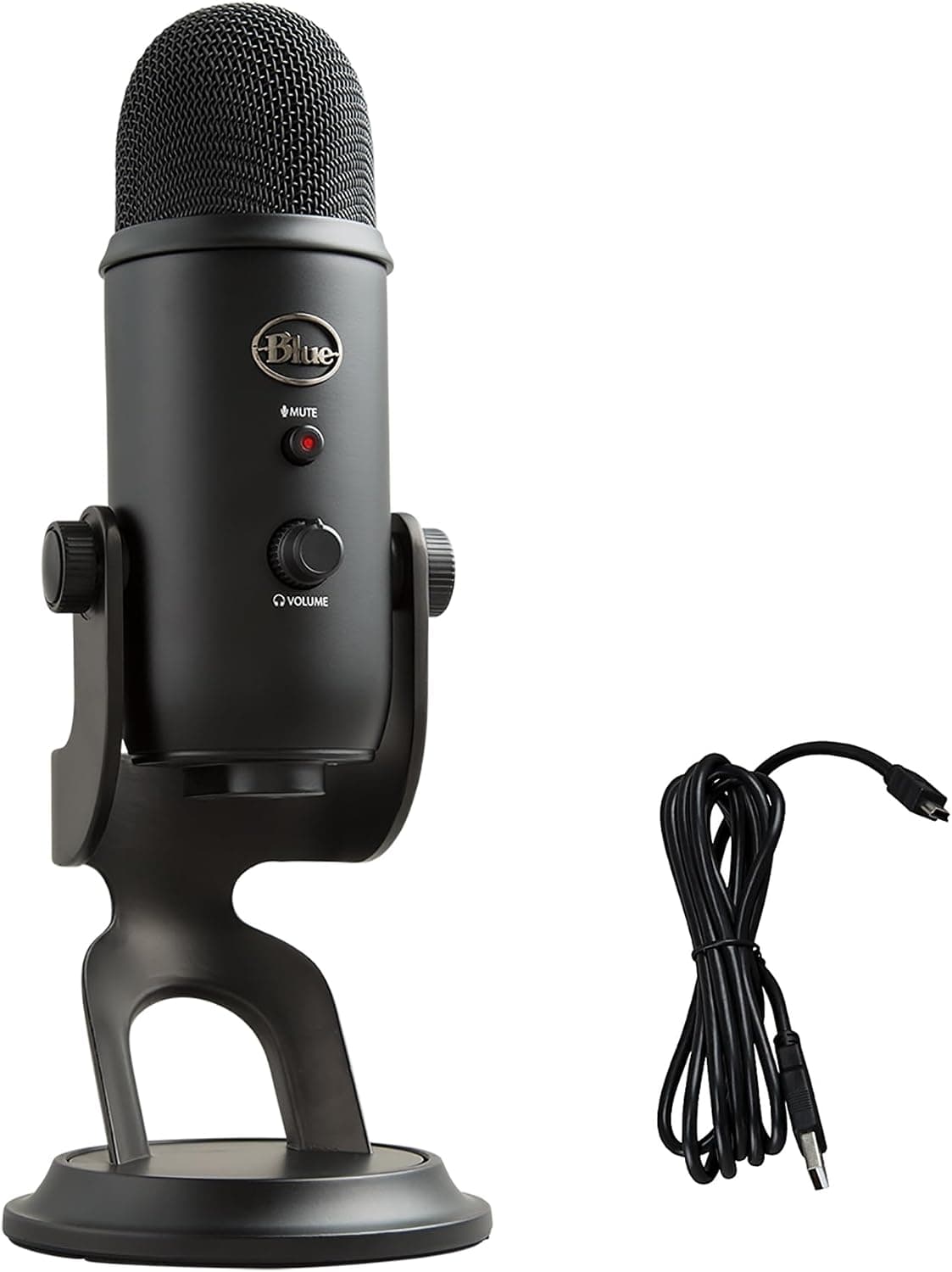
+ Multiple pickup patterns let one mic record solo, face-to-face or room interviews
From our guide: Best USB Microphones
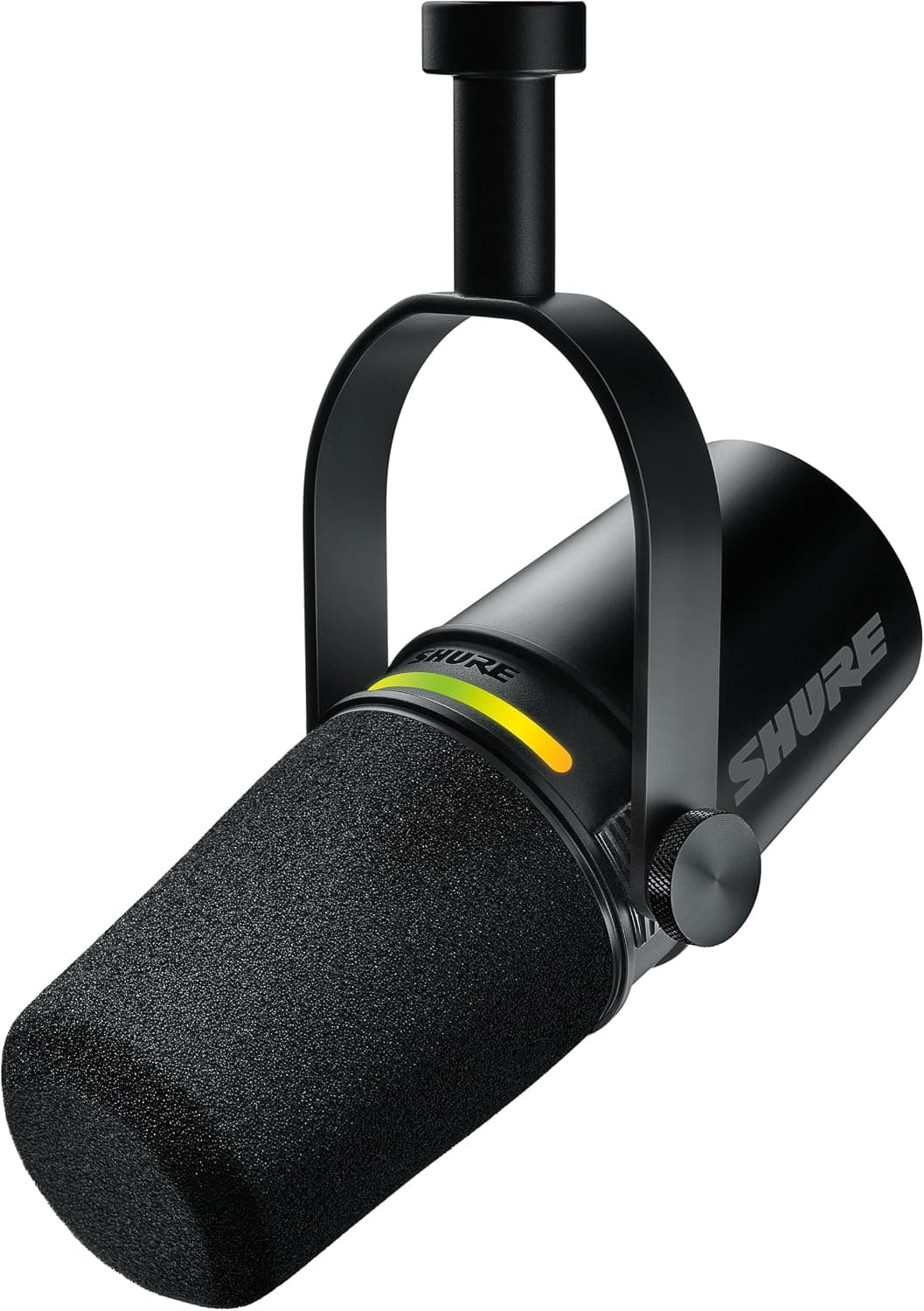
+ USB-C and XLR outputs work with modern laptops, phones and pro interfaces
From our guide: Best Podcast Microphones

Check cable, port and hub
Try a different USB port directly on the computer, not a hub or monitor port. Unpowered hubs and some docks cannot supply enough power for microphones, especially those with headphone amplifiers and lighting.
Use the cable that came with the mic or a known data cable. Many USB-C cables sold for phone charging carry power only and do not transfer data, so the microphone lights up but the computer never sees it.
Allow microphone access
On macOS, open System Settings, then Privacy and Security, then Microphone, and enable access for your recording app or browser. On Windows, go to Settings, Privacy and security, Microphone, and allow apps and desktop apps to access the microphone.
After changing permissions, fully quit and reopen the app. Browser-based recording tools may also need permission granted in the browser's site settings.
Select the right input
Set the USB microphone as the default input device in the system sound settings, then check the input selected inside your recording or video call app, since many apps keep their own setting and may still use the laptop's built-in microphone.
Watch the input level meter while speaking. If it moves in system settings but not in the app, the app is using a different device or a different channel.
Check mute, gain and drivers
Many USB mics have a physical mute button or touch-sensitive mute with a light indicator. Also check that the gain knob is not turned all the way down.
Most USB mics use class-compliant drivers and need no installation, but some offer companion software for firmware updates and extra controls. On Windows, look in Device Manager for the device under audio inputs, and try uninstalling it and reconnecting to reinstall the driver.
Match sample rate and restart
Mismatched sample rates between the microphone, operating system and recording software can cause silence, crackling or distorted audio. Set everything to the same rate, commonly 48 kHz for podcasts and video.
If nothing else works, restart the computer with the mic connected, then test the microphone on another computer. If it is not detected anywhere with a known good cable, contact the manufacturer about a replacement.
Popular right now
- Best Microphone Isolation ShieldsBuying guide
- Best Acoustic DiffusersBuying guide
- Best XLR MicrophonesBuying guide
- Gain Staging BasicsArticle
- Best LED Video LightsBuying guide
- Best Digital RecordersBuying guide
Based on the last 28 days of search and visitor data.